Why Controller Support Matters Here
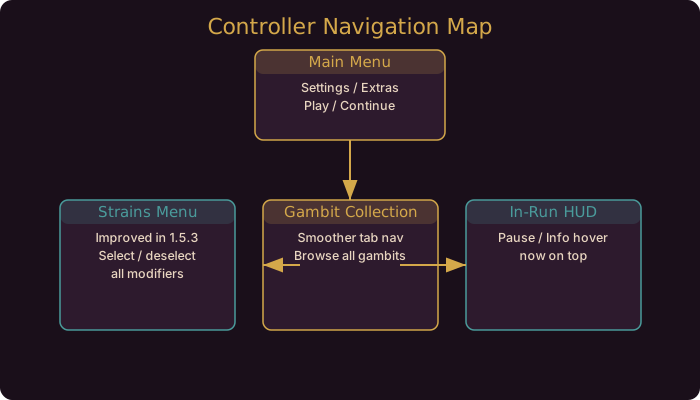
Gambonanza is a menu-heavy game. A run involves the board, the Gambit sidebar, the Shop, the Graveyard, the Strains menu, and the Gambit collection. Each is a distinct interface. When controller navigation works, the game feels native on a handheld. When it does not, you feel every menu.
The 1.5.3 hotfix targeted exactly this. It fixed navigation on Steam Deck and with a controller in the Strains menu, and optimized the Gambit collection tab for smoother navigation. Both are menus you visit often, so the fixes have an outsized impact on how the game feels.
The Core Menus and What They Do
Understanding what each menu is for makes navigation intuitive, because you know what you are trying to reach.
- Settings, including the Extra category. This is where the quality-of-life toggles live: skip animations, algebraic notation, unlock all, and erase save data.
- Strains menu. This is where the difficulty modifiers attached to a run are listed. On higher difficulties, Strains are the reason the Graveyard disappears and prices rise. Review it before a climb. Navigation here was fixed in 1.5.3.
- Gambit collection. The full catalog of Gambits. Browsing it is how you learn what exists. Navigation was optimized in 1.5.3.
- In-run HUD. The board plus the Gambit sidebar. Hovering a piece or Gambit and pressing Pause or Info now shows the description in front of the menu (fixed in 1.5.3).
Tips That Make Controller Play Better
Controller play rewards a few habits:
- Use the hover-info flow deliberately. On a small screen, tapping into a tooltip is the fastest way to read a Gambit. The 1.5.3 fix means the description now lands in front of the pause and info menu instead of behind it, so the read is clean.
- Learn the Strains menu early. Do not treat it as a settings screen you ignore. Your modifiers define the run’s rules. Open it once per climb and read it.
- Browse the collection between runs. The optimized Gambit collection tab is best used as a study tool, not mid-combat. Learn names between games so you recognize them during one.
- Confirm your mapping once. If you use a non-Deck controller, confirm the D-pad and stick behavior in the Settings menu before a serious run. Controller navigation in the Settings menu was improved back in the 1.4 hotfix line, so it should feel responsive.
A Practical Controller Session
Here is a clean way to run your first controller games:
- Open Settings and confirm controls respond the way you expect.
- Turn on skip animations to shorten the loop.
- Open the Strains menu once so you know the run’s modifiers.
- Play a PAWN game to test board navigation and tooltip hovering.
- Between runs, browse the Gambit collection to build recognition.
- Only then start a climb on a higher difficulty.
Menu and Fix Reference
| Menu or Action | Status After 1.5.3 | Notes |
|---|---|---|
| Strains menu navigation | Fixed | Works on Deck and controller |
| Gambit collection tab | Optimized | Smoother browse |
| Hover info on piece/Gambit | Fixed | Description shows in front of menus |
| Settings navigation | Improved since 1.4 | Responsive on controller |
What This Means for Your Builds
- Controller play is now first-class. The two rough menus are fixed, so nothing about the run flow fights you.
- Strains knowledge is the real skill. Navigation being smooth does not help if you never open the menu. Read your modifiers.
- Collection browsing pays off. A smooth Gambit tab is a learning tool. Use it between runs.
- No strategy changed. This is an input and UI fix, not a balance change.
Where To Go Next
If you want to go deeper on the systems referenced here, read the Strain system guide and Steam Deck settings guide. They cover the mechanics this patch touches in full detail.
Browse the Gambit collection between runs, not during them. The optimized tab is a study tool, and recognition beats reading mid-combat.
Community Resources
Guide updated for Gambonanza v1.5.3 (released September 2026). Strains navigation, collection tab, and hover info fixes are confirmed in the official 1.5.3 Steam news post.